MIDI to WAV: choose the sound, then export a checked render
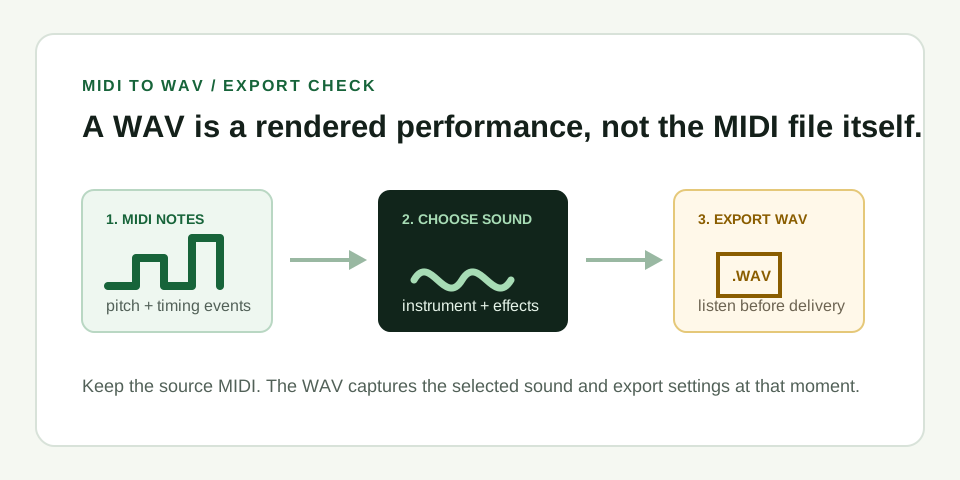
To convert MIDI to WAV, first load the MIDI into a sound source, then render that performance as audio. MIDI is not audio: the finished WAV depends on the instrument, mix, and export choices you make.
.mid in a DAW, notation app, or MIDI player with an instrument assigned. Confirm the tempo and ending, export or render as WAV, then listen to the first, middle, and final note before you deliver it.What actually happens when you convert MIDI to WAV?
MIDI tells software what to play; WAV records the sound that software produces. A MIDI file can contain note pitch, start time, duration, velocity, and control changes. It does not contain a piano, guitar, vocal, room, or master file. When an instrument receives those events, it creates audio. Rendering captures that audio into a WAV file.
This distinction matters when a file sounds different after export. The MIDI may be unchanged while the selected instrument, reverb, tempo, output routing, or sample rate has changed. Preserve the .mid as the editable source and regard a WAV as one chosen rendering of it.
Export MIDI to WAV in four checks
- Open the MIDI and assign a sound. Use the built-in instrument in your DAW or a trusted virtual instrument. Listen to a few notes, especially low notes and sustained notes, before you render.
- Set the playback range. Start slightly before the first note and leave enough tail after the final note for releases or reverb. Do not export a loop range by accident unless a loop is the intended deliverable.
- Render WAV with named settings. Choose WAV, set the project sample rate and bit depth required by the destination, and name the export so it identifies the sound or version.
- Listen at three points. Check the first entrance, one musical transition, and the final decay. Compare note order and ending length against the MIDI piano roll.
A repeatable acceptance test for a MIDI-to-WAV handoff
Use one short MIDI phrase with a recognizable start, change, and ending. Render it once with your selected instrument, then play the WAV beside the MIDI project. Mark whether the first note begins cleanly, the transition occurs at the expected point, and the end tail is intentional.
Next, render the same MIDI with a visibly different instrument but unchanged tempo and range. The two WAV files should differ in tone while retaining the same musical order and timing. This separates a sound-selection change from a MIDI or export-range mistake. Keep both the source MIDI and the settings used for the version you approve.
| What you hear | Likely cause | What to check |
|---|---|---|
| Correct notes, wrong sound | Different instrument or preset | Reopen the intended instrument before rendering again |
| WAV starts late or cuts off | Incorrect export range | Include a small lead-in and the full final release |
| Timing is different | Tempo map or project tempo changed | Compare the project tempo and MIDI playback positions |
| Export is quiet or distorted | Routing, gain, or master processing | Check the output bus and leave headroom before export |
Choose a format without guessing
WAV is a common delivery format because it is uncompressed audio and works broadly in editors and DAWs. The appropriate sample rate and bit depth depend on the destination: follow a client, platform, video-project, or DAW requirement when one exists. If there is no requirement, use the project settings and avoid converting repeatedly between formats.
Exporting MIDI to WAV is not a way to preserve editability. Send or archive the MIDI alongside the WAV when later note edits may be needed. The WAV lets someone hear the chosen performance and tone; the MIDI lets someone change notes and select another instrument.
Where MIDI Convert fits
MIDI Convert creates an editable MIDI sketch from one dominant audio melody. It does not render MIDI into WAV or provide instruments and mixing. After you create or edit a MIDI file, use your DAW, notation software, or MIDI player to assign a sound and export WAV. This keeps the two jobs clear: estimate notes from audio here, then turn notes into audio in a playback environment.