Prepare the phrase
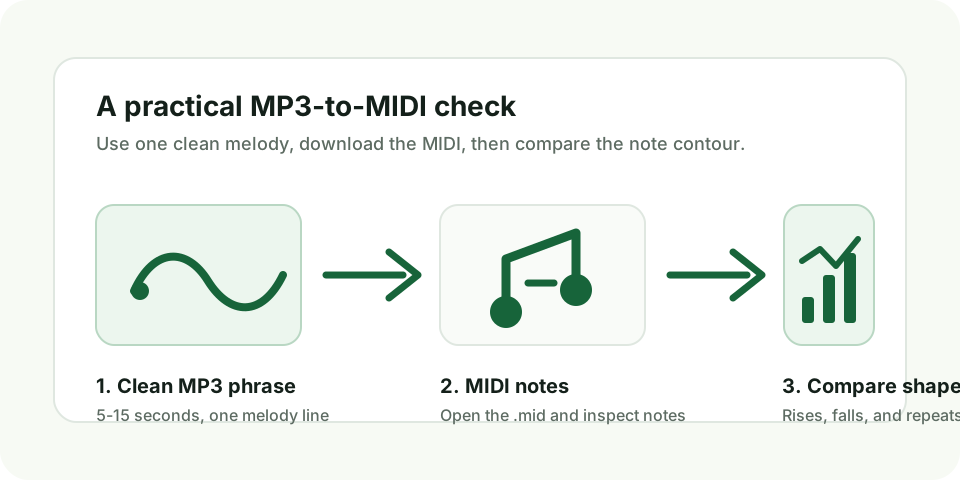
Use a 5-15 second clip with one exposed melody. Trim silence, spoken words, and loud breaths before converting.
Convert a short MP3 recording into an editable Standard MIDI file when the source has one clear melody, vocal line, bass line, or solo instrument.
Your file is decoded and analyzed in this browser. It is never uploaded by this page.
One detected melody line, drawn from the same note events as the MIDI download.
This converter decodes your file in the browser, follows the strongest pitch line, and writes a Standard MIDI file. Nothing is uploaded 鈥?the original audio stays on your device.
Use a 5-15 second clip with one exposed melody. Trim silence, spoken words, and loud breaths before converting.
Choose the file, keep Melody / solo instrument mode, and click Convert to MIDI. Pitch detection runs fully in your browser.
Open the .mid in a DAW or notation app. Compare the
melody contour, then quantize and delete obvious mistakes.
Leave out drums, backing chords, and reverb-heavy room sound. The cleaner the melody contour, the better the MIDI follows it.
This is not a full multi-track transcription service 鈥?it does not split a complete song into drums, chords, bass, and vocals. If several notes play at once, the detector follows one dominant pitch.
That boundary is deliberate: local conversion is fast, private, free to try, and needs no account.
Select MP3, WAV, FLAC, OGG, M4A, MP4, MOV, MKV, or WebM 鈥?audio
inside video files is used when the browser can decode the codec.
FLAC, OGG, WebM, and MOV use the same local conversion path; no
separate format workflow is needed. You download a Standard MIDI
.mid file, ready to open in any DAW, notation app, or
MIDI editor.
A useful result has three signs: the file is not 0 bytes, it opens correctly, and the notes rise, fall, and repeat in roughly the same pattern as the melody you hear in the source.
If the result is full of unrelated notes, simplify the input 鈥?a shorter clip, a closer microphone, or less background noise usually helps more than raising sensitivity.
Use this test before you spend time editing a download. It separates a MIDI sketch worth fixing from a result that needs a different source clip.
Play a five-to-fifteen-second MP3 once without looking at the waveform. Hum or sing the one line you expect the MIDI to follow. If you cannot identify one line because a vocal, bass, chord, and drum hit arrive together, do not use that section as the test.
Then write down one simple reference: for example, “three notes rise, the top note repeats, then there is a short pause.” That is enough to evaluate a first conversion without pretending every note must be exact.
Convert the MP3 and open the MIDI file. Ignore velocity and tiny timing differences at first. Check whether the notes rise where your phrase rises, whether repeated notes remain repeated, and whether silence remains visible as a gap.
If all three signs are present, keep the download as a sketch. Correct a soft note onset, a slide, or one wrong octave in your MIDI editor. This is the normal handoff from a recording to an editable note line.
When the contour breaks, replay only that half-second of the MP3. A backing chord, bass entrance, drum resonance, or reverb tail often appears at the same point. Trim before that moment, use another exposed phrase, or export the solo part if you have it.
The downloaded file contains note events. Open it in Ableton Live, FL Studio, Logic Pro, Reaper, a notation app, or another MIDI editor and choose the sound there. It will not preserve the singer, guitar tone, mix, or mastering of the original MP3.
You can try, but this page is built for one dominant melody, not full song transcription. A complete mix often contains drums, chords, vocals, bass, and effects at the same time, so the result may follow only the loudest pitch.
Yes. Choose a WAV file and use the same Convert to MIDI button. Clean WAV files often work well because they avoid some compression artifacts, but the source still needs one clear melody.
Yes. Choose the file in the same local converter. Video formats use their audio track only when the browser can decode its codec, and every source still needs one clear melody.
No. This static page has no upload request or server endpoint. Conversion happens through the Web Audio API in the browser.
Audio-to-MIDI estimates one dominant pitch line. Replay the source at the wrong moment. If a chord, drum, bass note, reverb tail, or another voice enters there, retry with a shorter exposed phrase. If the overall contour is right and one audible note is wrong, correct that confirmed event in a MIDI editor. Do not rebuild an unrelated contour note by note.
Open the MIDI in a DAW, notation app, or MIDI editor. Check the melody contour first, then edit timing, octave, and wrong notes by hand if the source performance had slides, breaths, or background noise.