Audio to MIDI: a simple way to check whether the notes came through
A useful audio to MIDI result comes from a short, clear melody. Compare the downloaded notes with the original phrase instead of judging the conversion by the download alone.
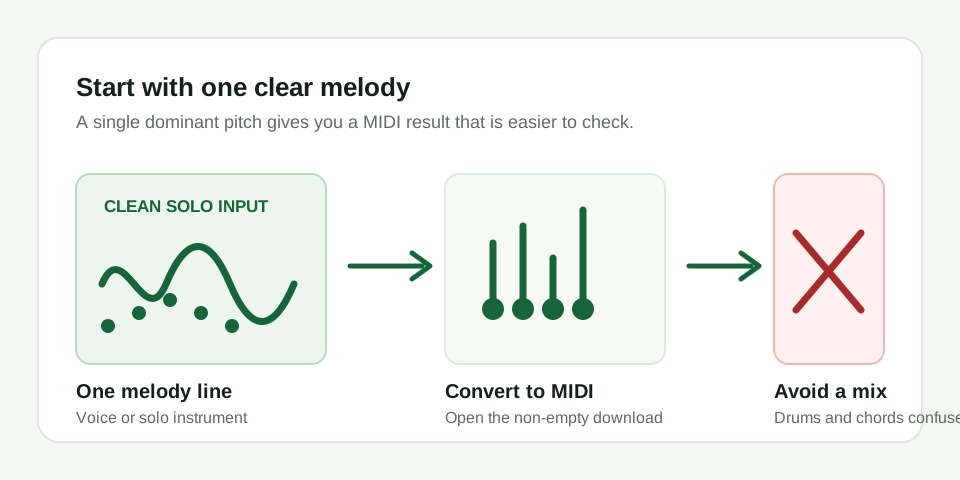
Use this three-step test
- Choose a 5-15 second MP3, WAV, or M4A containing one voice or solo instrument.
- Leave the tool in Melody / solo instrument mode and convert the file locally.
- Check that the downloaded MIDI is not 0 bytes, opens correctly, and follows the same rising and falling pattern as the source.
Keep the phrase short enough that you can remember what happened in it. A four-note whistle, a sung hook, a bass riff, or a single-note piano line is easier to audit than a whole verse. If you already know the phrase goes up, holds, then drops, the MIDI should show that same contour even if one note needs manual cleanup.
For a first pass, do not use a mastered song, a chord progression, or a recording with a loud backing track. Those files can still produce a MIDI download, but the notes may represent whatever pitch was strongest at each moment rather than the melody you wanted.
What a noisy result means
A full mix can make a single-pitch detector follow the loudest instrument, drum, or reverb tail. Remove the accompaniment and test the clean melody again before changing conclusions.
Wrong-note checklist
Use this checklist before deciding that the conversion failed. It keeps the test tied to what the audio actually contains instead of guessing from the file name.
| What you see in the MIDI | Likely cause in the audio | What to try next |
|---|---|---|
| A few nearby wrong notes | Slides, vibrato, breath noise, or a note that starts softly | Edit those notes by hand or record with clearer note starts |
| Many fast extra notes | Room noise, reverb tail, or a rough waveform being read as pitch movement | Trim the clip shorter and use a drier recording |
| Notes follow the bass instead of the melody | The bass line is louder or more stable than the lead | Use a section where the melody is exposed, or convert the bass line intentionally |
| Notes jump around with no musical shape | Drums, chords, or overlapping instruments are competing | Use a solo stem or record the phrase again with one instrument |
Why does audio to MIDI give wrong notes?
Wrong notes usually mean the input has more than one strong pitch for the detector to follow. Backing chords, drums, reverb, room noise, and overlapping instruments can pull the result away from the lead melody. Trim the file to one exposed phrase before testing again; do not read a mixed-song result as a chord or multi-track transcription.
A useful result does not have to be perfect. If the melody shape is recognizable, you can often fix a few pitch or timing mistakes faster than entering the phrase from scratch. If the shape is not recognizable, the better fix is a cleaner source, not more editing.
Keep the boundary clear
This workflow estimates one dominant pitch line. It is useful for a melody sketch, not a promise of complete chord separation or multi-track transcription.
If you need chords, drum parts, or separate instrument lanes, this page is the wrong tool for that job. Use it for a single line you can hear and verify. That narrow boundary is also why the file can be processed locally in the browser without asking you to upload audio or create an account.
When audio to MIDI is the right choice
Use this workflow when the recording is already close to monophonic: a vocal idea, flute phrase, whistle, synth lead, bass line, or simple guitar melody played one note at a time. It also helps when you want a quick MIDI sketch that you plan to edit after downloading.
Do not use it as the final judge of a finished production. Treat the MIDI as a draft layer. Open it, listen beside the source, keep the notes that match, and correct the rest in your editor.
If you are testing several files, keep notes on which source worked and why. You will usually see the same pattern: shorter clips with one exposed line produce cleaner MIDI than louder or busier clips with more musical information.
.mid file should be non-empty and open in a MIDI editor, DAW, or notation app.