Import MIDI into a DAW: check the sketch before you edit
Drag or import the downloaded .mid into an instrument track, choose any temporary sound, and compare its broad note contour with the source before you start correcting details.
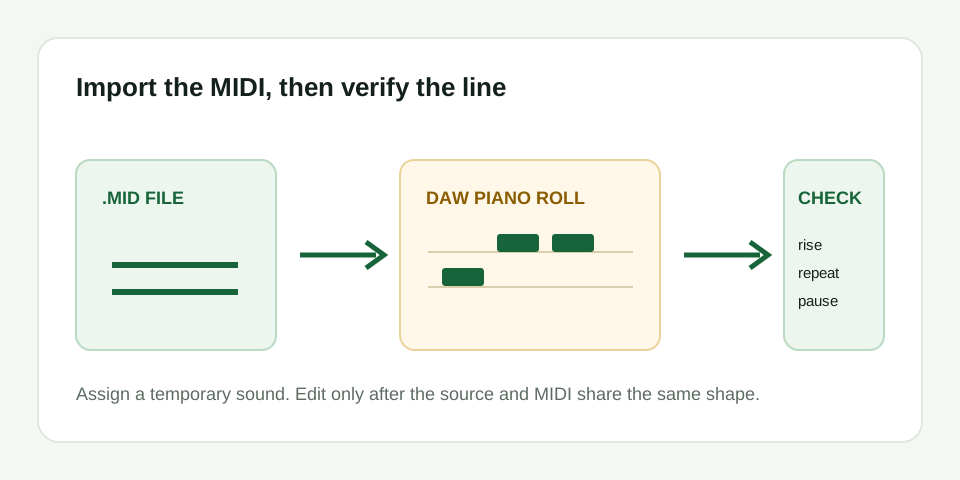
.mid onto an instrument or MIDI track, assign a sound so you can hear it, and check the first note, largest rise or fall, repeated note, and final pause. Edit only after those reference points agree with your source.Start with one track and one temporary sound
Every DAW names commands differently, but the handoff is the same in Ableton Live, Logic Pro, FL Studio, Reaper, GarageBand, and similar software. Create an instrument or MIDI track, then drag the downloaded file into the arrangement or use the import command. If the DAW asks whether to use the file's tempo information, use the project setting you intend to edit with and listen before committing to further changes.
MIDI stores note events, not the original singer, guitar tone, or recording. A basic piano sound is enough for the first check because it makes pitch, timing, and silence easy to hear. Choose the finished instrument only after the note line is trustworthy.
Use a four-point import check
- First note: compare the MIDI opening with the source. A wrong octave is easier to spot here than after you have edited the whole phrase.
- Main movement: find the largest climb or drop in the source and confirm the piano roll moves the same way.
- Repeat: if the source repeats a note, look for the same repeated event instead of one long held note.
- Pause and ending: make sure silence remains a visible gap and that the final note does not continue across it.
Fix the MIDI, not the audio track
If the four points match, the file is a usable sketch. Correct a wrong note, split two notes that merged, shorten an overlap, or make a gentle timing adjustment in the piano roll. Keep the original source audio nearby while you work. Replaying the exact moment keeps each change tied to something you can hear.
If the MIDI follows bass, chords, or an unrelated line, do not try to reconstruct the intended melody event by event. Go back to a shorter, clearer solo phrase and convert again. This tool estimates one dominant melody, not a full multi-track arrangement.
| What happens after import | Likely cause | Next move |
|---|---|---|
| No sound | The MIDI track has no instrument assigned | Load a basic instrument and replay the clip |
| Correct notes, wrong tone | A different instrument or preset is selected | Change the instrument; the MIDI itself is unchanged |
| Phrase starts in the wrong place | Import position or project timing differs | Line up the first note with the source before quantizing |
| Contour is unrelated | The original audio had competing pitches | Retry with a clearer melody source |