MP4 to MIDI: use the audio track, then verify the note pattern
An MP4 can contain a useful melody recording, but the video container itself is not the musical answer. The fair test is the audio inside it: one voice or one instrument with little background.
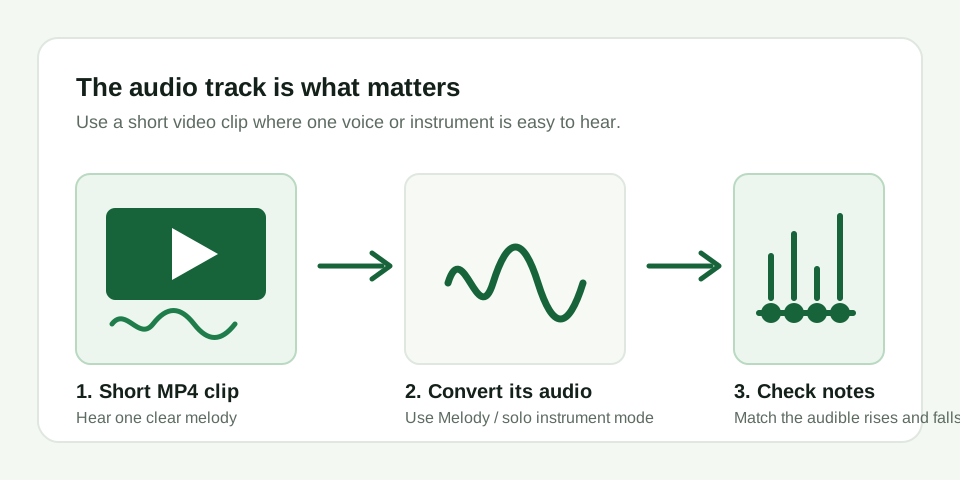
Use this three-step test
- Pick a 5-15 second MP4 where the audio is a solo voice or instrument, not a music video mix.
- Upload it in Melody / solo instrument mode and wait for the note list.
- Confirm the .mid download is non-empty, opens, and tracks the source melody when it rises, falls, or repeats.
The most important choice is the section of the video, not the video format. A phone clip of someone humming one phrase can work well. A polished music video with drums, bass, vocals, crowd noise, and effects is a poor test even if the melody is obvious to your ear.
If the clip is long, choose the cleanest few seconds before converting. A short exposed hook is easier to verify than a whole scene. If the browser can decode the file, the converter reads the audio track and ignores the picture itself.
What a noisy result means
Video files often carry room sound, dialogue, drums, or a backing track. If those dominate the audio, the detector can follow the wrong pitch; trim to a clean phrase and try again.
Which part of the MP4 should you use?
Use the table below to choose a fair section before you run the conversion. This matters because an MP4 often contains several different sound sources in one file.
| Video moment | Good MP4 to MIDI test? | Why |
|---|---|---|
| One singer humming or singing alone | Yes | There is one clear pitch line to follow |
| Solo instrument close to the microphone | Yes | The melody is likely stronger than room noise |
| Dialogue over background music | No | Speech and music compete, and speech is not a stable melody |
| Music video chorus with full backing track | No | Drums, bass, chords, and vocals overlap |
| Short clip where the lead melody is exposed between chords | Maybe | Trim tightly and judge by the melody contour only |
How can I tell whether an MP4 to MIDI result is usable?
It is usable when the MIDI opens and traces the melody in the video rather than every sound in the soundtrack. Play the same short moment and compare only the direction and repeated notes first. A file full of unrelated notes means the clip needs a cleaner audio section, not that the tool has separated the whole video into instruments.
A useful result should pass three checks. The MIDI file should not be empty, it should open in your editor, and the notes should follow the phrase you hear. If the video melody rises twice and then drops, the MIDI should show a similar rise and drop. If it does, you have a usable sketch even if a few pitches need editing.
If the result follows a different sound, listen again to the same moment in the video. Often the detector is following a bass note, a backing chord, or a resonant room tone because that pitch is stronger than the lead. A cleaner section usually fixes more than changing settings.
Keep the boundary clear
This page tests the audio track as a monophonic estimate. It does not extract dialogue, separate a full soundtrack, or create a multi-track arrangement.
That boundary is important for expectations. MP4 to MIDI here means "estimate one melody from the audio track," not "turn a whole video into a complete arrangement." If you need a full soundtrack transcription, stems, lyrics, or chord separation, use another workflow and treat this page only as a quick melody test.
Before you download the MIDI
Watch the preview moment once more and decide what line you expect the MIDI to follow. If you cannot point to a single voice or instrument, the result will be hard to judge. If you can point to one line, download the MIDI and compare that line first.
For a reliable demo, record a new MP4 with one short melody instead of using a busy existing clip. A phone recording of one whistle, hum, or keyboard line is enough to show whether the workflow works.