MIDI file has no sound? Check the track, instrument, and output
A MIDI file can open correctly, show notes in a piano roll, and still play silently. MIDI stores performance events, not recorded audio. Assign a sound source first, then check the track routing before assuming the conversion failed.
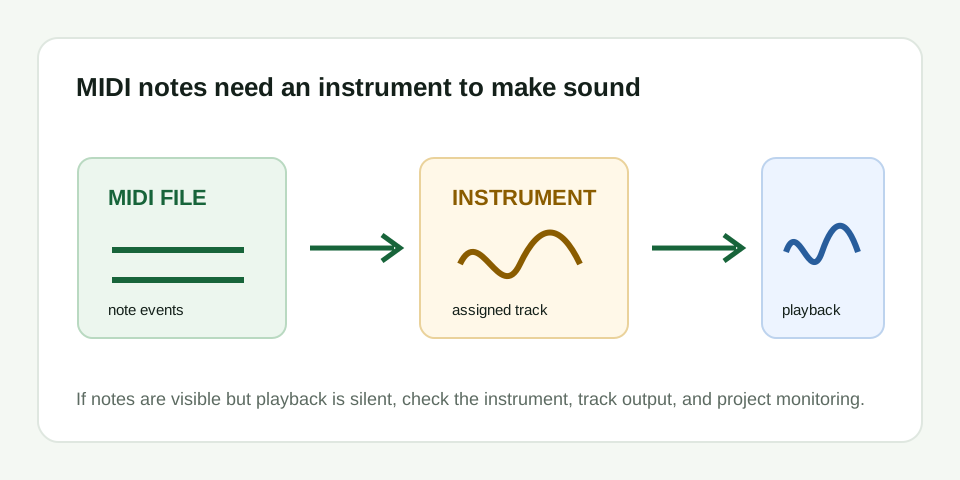
Start by separating file data from playback
When an audio-to-MIDI conversion finishes, the downloaded .mid contains note events such as pitch, start time, duration, and velocity. It does not contain the singer, guitar, piano, synth preset, or any recorded waveform. A DAW, MIDI editor, or notation app can display those events without automatically giving them a sound.
That creates a useful first diagnosis. Open the file and inspect the piano roll, event list, or track lane. If note blocks are visible, the file has musical data. Your next job is not reconverting the source: it is connecting those events to an instrument. If no events are visible, then return to the source clip and use a shorter phrase with one exposed melody.
Run this three-state check
- Notes visible, no sound: assign a basic piano or synth to the MIDI track. Keep this first sound simple so pitch and pauses remain easy to hear.
- Instrument loaded, still no sound: check mute, solo, track volume, output routing, and whether the application is playing the imported MIDI track rather than another empty track.
- Sound is present, but the line is wrong: playback is fixed, but the conversion needs review. Compare the first note, biggest rise or fall, repeat, and pause against the source before editing.
Use a simple instrument for the first check
A finished sound can hide problems. Heavy reverb, long releases, a wide pad, or a busy layered preset can make it difficult to hear where one MIDI event ends and the next begins. For the first pass, choose a plain piano-like or short synth sound. It is only a measuring tool. After the contour is trustworthy, choose the instrument you actually want for the project.
Some apps load MIDI into a dedicated MIDI lane but place instruments on another track. In that case, drag the file onto an instrument track or set the MIDI track's output to the instrument. The exact label changes between Ableton Live, Logic Pro, FL Studio, Reaper, GarageBand, and notation software, but the signal path is the same: note events must reach a sound source, then a master output.
| What you see | Likely explanation | Next move |
|---|---|---|
| Notes in piano roll, silence on playback | No instrument is assigned | Load a basic instrument on that MIDI track |
| Track has an instrument, silence continues | Muted track, routing issue, or wrong selected track | Check mute, solo, master output, and the playing clip |
| Meter moves but speakers are silent | DAW output device or master channel issue | Check the application's audio output setting and master channel |
| Events are visible but extremely high or low | Notes fall outside the selected instrument range | Try a full-range piano sound, then inspect octave placement |
| No events are visible | No usable pitched notes were detected or the wrong file opened | Confirm the download, then retry with a clear solo phrase |
Do not judge the conversion from silence alone
The most common mistake is to treat a silent MIDI file like a broken MP3. An MP3 contains audio and should play through a normal media player. MIDI needs an application that interprets note events and an instrument that generates sound. Once you hear playback, judge the conversion by the note contour, not by whether its instrument resembles the original recording.
For example, a converted vocal melody may play through a piano. That is expected. The question is whether it rises, repeats, and pauses like the voice line in the source. If it does, keep it as a sketch and edit only the mistakes you can verify by replaying the original phrase. If it follows bass or accompaniment instead, use a clearer input rather than trying to turn a different line into the target melody.
Keep the source beside the MIDI
Save the original audio and MIDI together. The source is your evidence for whether a note event belongs; the MIDI is the editable result. After the notes are correct, assign a final instrument and export audio from your DAW when you need a WAV or other delivery format. MIDI Convert estimates one dominant melody only. It does not provide instrument sounds, multitrack arrangements, chord recognition, stem separation, or full-song transcription.