MIDI to sheet music: check one melody before you export
Use MIDI Convert to make a five-line sheet music preview from the same detected note events that make the .mid download. Keep the preview when its rises, repeats, and gaps follow the one melody you intended to capture; correct uncertain notes before treating it as a reading copy.
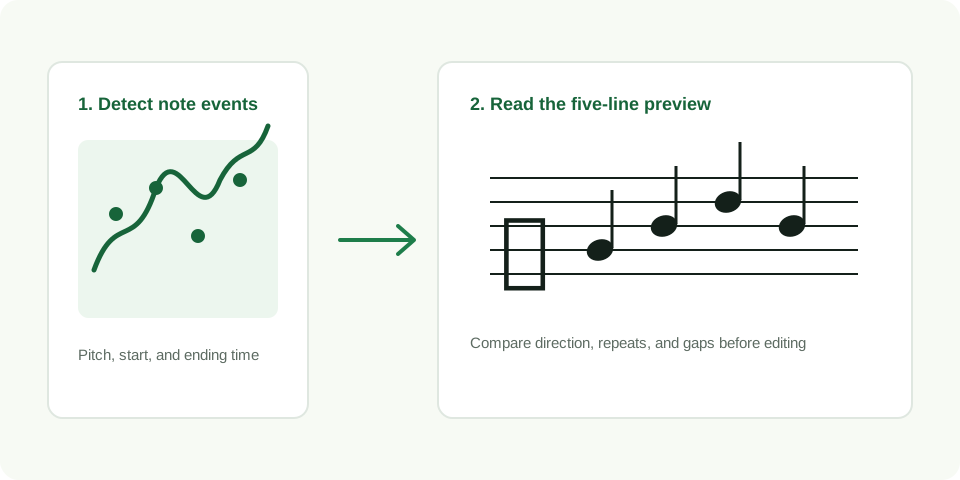
Convert a melody and view the five-line preview
What the preview reads from MIDI
A MIDI event records a pitch and a position in time. The browser already has those values after it completes a conversion, so the preview uses the same events rather than running a second analysis. Each detected note becomes a notehead on a five-line staff. The page places the notes in their detected order and draws stems so the melody can be scanned quickly.
This makes the preview useful for the decision that follows a conversion: is this still the melody I meant to keep? It does not turn a noisy recording into a guaranteed finished score. A source with one exposed line gives the clearest result because there is one audible pitch direction to compare.
Make a usable MIDI-to-sheet-music preview
- Start with a short known phrase. Choose five to fifteen seconds where you can name the melody without guessing. A hummed line, solo instrument phrase, or clean bass line gives you a clear reference.
- Convert it in the browser. Leave the detection mode on the line you expect to hear. The page creates its MIDI file and its preview from the same locally detected events.
- Read the first shape before reading every detail. Look at the opening pitch, the largest movement, a repeated note, and the first intentional pause. These four points reveal whether the line is broadly right.
- Download the right artifact for the next job. Download
.midfor editable note events. Download the sheet preview SVG when you need a compact visual reference. Keep the original recording beside both files. - Edit in your notation or MIDI software when necessary. A local wrong pitch, timing shift, or missing pause should be checked against the source before it is changed.
Use a four-point reading check
| Point | What the preview should show | What to do when it does not |
|---|---|---|
| Opening | The first visible note matches the phrase entrance | Replay the first second and check whether the source begins with silence or a note |
| Direction | The line rises or falls where the melody does | Use a shorter source phrase if another sound pulls the detected pitch away |
| Repeat | A repeated tone remains a repeated visual position | Check the source for a slide, breath, or very quiet re-attack before editing |
| Gap | An intentional pause appears as space between events | Trim competing room sound and convert the clean phrase again |
What the SVG download is for
The SVG is a lightweight, scalable image of the browser preview. It is practical when you want to attach a visual reference to a note-editing session, keep a before-and-after record, or open the preview without playing the audio. Because it is an image, it is not a replacement for your editable MIDI file. Keep the .mid whenever timing or pitches still need work.
For a polished performance score, use notation software after the acceptance check. That is where you can review layout, note values, titles, and any musical markings you need. The browser preview has a narrower job: show whether the detected melody contour is worth taking into that next step.
A reproducible eight-note check
Use the downloadable clean test phrase from the change MP3 to MIDI guide. It contains eight designed tones in 5.85 seconds. In the recorded browser run, the converter wrote eight note events, so the preview should show eight noteheads in order. That is an event-count check for this clean fixture only. It does not predict how a dense recording will behave.
For your own phrase, write down four reference moments before conversion: first note, largest upward or downward move, repeated note, and pause. Run the same source twice without changing the file. A stable preview keeps those moments in the same order. If one pass follows a different sound, improve the input instead of forcing the notation to fit.
When the preview is not ready to keep
| What you see | Likely reason | Next move |
|---|---|---|
| The entire line is shifted from the melody | Another pitch was more prominent in the recording | Choose a shorter, clearer solo phrase |
| Notes jump around at one moment | Noise, resonance, or a competing sound changed the detected pitch | Replay that moment and trim the source before it |
| The preview has no notes | The clip is silent, too quiet, or outside the selected pitch range | Use a louder clean phrase or try the matching detection mode |
| The note order looks right but timing feels loose | The conversion is a first sketch, not an edited performance file | Keep the MIDI and adjust timing only after checking the source |
Where MIDI Convert fits
MIDI Convert estimates one dominant melody from a local audio file. The five-line preview reflects that same single sequence of detected note events. It is designed to make the handoff more visible: source audio to MIDI sketch to a quick notation check. Use a clear phrase, retain the source, and only keep the preview when its contour can be heard in the original recording.
Questions about MIDI to sheet music
Can I download the five-line preview?
Yes. After a completed conversion, choose Download sheet .svg. The downloaded SVG contains the visual preview of the detected melody events.
Does a sheet preview prove that the conversion is correct?
No. It proves that the page has drawn its detected events. Compare the melody contour with the source recording before you rely on it.
Should I edit the MIDI or the SVG?
Edit the MIDI when you need to change note events. Keep the SVG as a visible reference; use notation software when you need to prepare a finished score.