Change MP3 to MIDI: download a known test and reproduce the result
Download one clean, known MP3 melody, change it to MIDI in the browser, and compare your result with the actual MIDI output below. This fixture produced 8 detected events from 8 designed tones: an event-count agreement of 100% for this specific test.
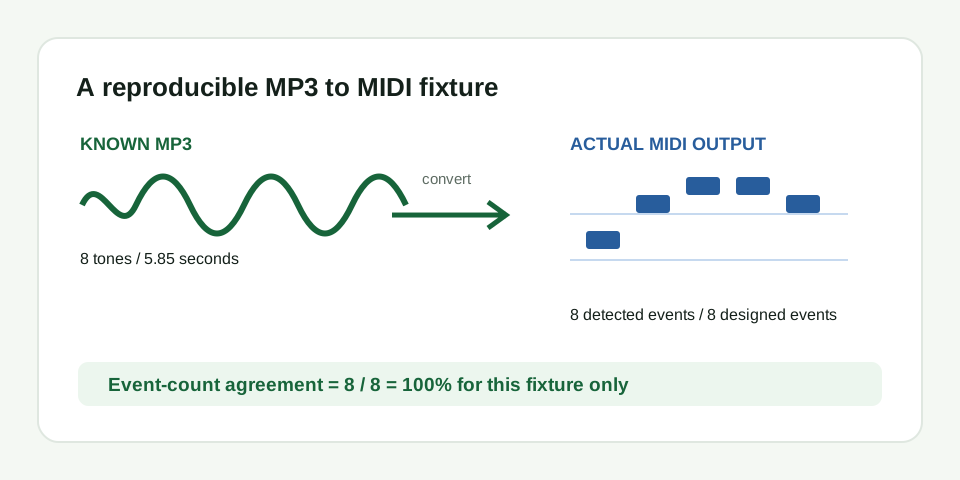
8 detected / 8 designed = 100% event-count agreement for this fixture only.What you are downloading
The input is a mono 192 kbps MP3, 5.85 seconds long. It contains eight 0.60-second pure-tone notes with seven 0.15-second silent gaps. The intended note sequence is C4 E4 G4 G4 E4 D4 C4 C4. It contains no drums, chords, reverb, vocal consonants, backing parts, or competing pitches.
The MIDI download is not hand-authored reference notation. It is the actual file written by the browser converter after processing this exact MP3 in Melody / solo instrument mode. The file is a Standard MIDI file with 8 detected events and is 110 bytes on the recorded run.
How to repeat the check
- Download the known-input MP3 above. Do not edit or re-encode it.
- Open the MP3 to MIDI tool, choose the file, leave the mode on Melody / solo instrument, and select Convert to MIDI.
- Read the displayed detected-note count, then download the result.
- Open your MIDI file in an editor and compare the count and broad order with the supplied actual output.
The reproducible number
Event-count agreement is 100%: 8 detected events / 8 designed tone events x 100 = 100%. The converter displayed eight events at approximately 0.00, 0.72, 1.49, 2.23, 2.97, 3.74, 4.48, 5.22 seconds. The source note starts are designed at 0.00, 0.75, 1.50, 2.25, 3.00, 3.75, 4.50, 5.25 seconds; the small differences reflect frame-based analysis and MP3 decoding.
This number is intentionally not an accuracy score for arbitrary music. It says only that the converter wrote the same number of events as this clean fixture contains. A full song, chord progression, drum loop, or reverberant vocal can produce a different result because this tool estimates one dominant melody.
| Fixture property | Recorded value | How to check it |
|---|---|---|
| Input format | Mono MP3, 192 kbps | Download the linked input file and inspect it in an audio editor |
| Source duration | 5.85 seconds | Read the file duration in an audio editor or media inspector |
| Designed tones | 8 | Count the listed note sequence |
| Recorded detected events | 8 | Run the converter and read its detected-note count |
| Actual output size | 110 bytes | Download the linked MIDI and inspect its file properties |
What to compare beyond the count
A matching count is the first check, not the whole decision. Open the MIDI in a DAW or editor and confirm that it begins on C, rises to E then G, keeps the repeated G, returns through E and D, and ends with repeated C. That broad contour is more useful than treating every millisecond of timing as a pass/fail test.
For your own MP3, keep the same discipline. Choose a short exposed melody, compare the first note, main movement, repeat, and pause, then keep the MIDI only if those reference points agree. For editing guidance, use the MIDI cleanup workflow.
Where this test stops
This public test is a fixture, not a promise. It does not establish performance on full songs or multiple instruments, and it does not claim chord recognition, stem separation, drum transcription, or multitrack MIDI export. If a real MP3 contains competing pitches, choose a clearer phrase rather than expecting the fixture result to transfer unchanged.