Convert MP3 file to MIDI: verify the file before you edit it
Choose a short MP3 with one exposed melody, convert it locally, then verify three separate things: the file is real MIDI data, it opens with note events, and its musical shape follows the source. A download alone is not the final check.
.mid file, and open it in a DAW or MIDI editor. First confirm the file is non-empty and has visible note events. Then compare its first note, main rise or fall, repeat, and pause with the MP3 before you treat it as an editable sketch.Separate the file check from the music check
After you convert an MP3 file to MIDI, two questions matter. The first is technical: did the browser write a usable Standard MIDI file? The second is musical: did the note sequence follow the line you intended? A valid file can still follow a bass line or accompaniment from a busy mix, and a recognizable melody can still need a small timing or octave correction.
Keeping these checks separate avoids an easy mistake. If a MIDI file opens, that only proves the application recognizes the file format. It does not prove the notes represent the right part of the MP3. Conversely, a silent track may simply need an instrument assigned; MIDI stores note events, not recorded sound.
Convert the MP3 file in four steps
- Choose one clear phrase. Use about 5 to 15 seconds with a single vocal, whistle, synth, bass, or solo-instrument line. Do not start with a dense song section.
- Convert locally. Open the converter, select the MP3, leave Melody / solo instrument selected for a lead line, and download the result.
- Open the file. Import the
.midinto a DAW or MIDI editor. If it is silent, put a basic instrument on the MIDI track. - Compare the shape. Use the source audio as evidence for the opening note, biggest movement, a repeated note, and an audible gap.
A reproducible file-level check
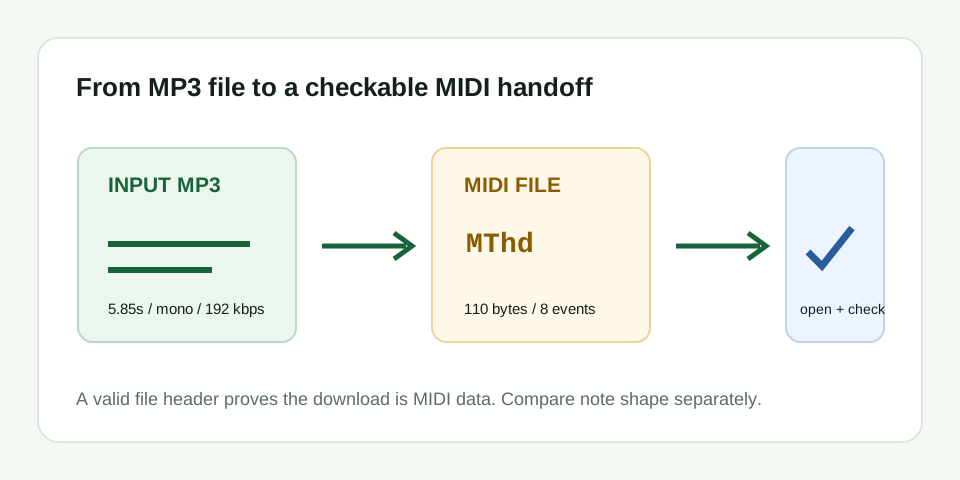
The public fixture below gives you a way to check the handoff without supplying your own recording. Its known input is a 5.85-second mono 192 kbps MP3 with eight isolated tones. The actual output was written by the browser converter from that file. The output is 110 bytes and starts with the four bytes 4D 54 68 64, which read as MThd.
MThd is the Standard MIDI header marker. You can inspect it with a hex viewer or file-inspection tool. It confirms that this downloadable output starts as MIDI data. It does not prove musical accuracy, so the same fixture also needs the event and contour check described below.
| Check | Recorded fixture value | What it tells you |
|---|---|---|
| Source file | Mono MP3, 192 kbps, 5.85 seconds | The exact input is downloadable and inspectable |
| Output size | 110 bytes | The result is not an empty download |
| First 4 output bytes | 4D 54 68 64 / MThd | The output begins with a Standard MIDI header |
| Designed tones / detected events | 8 / 8 | The clean fixture has matching event count |
What to inspect in your own MIDI file
Start with visible evidence. In a piano roll, look for note blocks rather than an empty lane. Then listen with a simple piano-like sound. Do not judge whether it sounds like the original singer or instrument; that sound is not stored in MIDI. Judge whether the note line rises, repeats, and pauses in the same broad pattern as the MP3 phrase.
If one note is slightly wrong but the four reference points agree, keep the file as a sketch and correct the confirmed event. If the main movement follows bass, chords, or unrelated notes, return to a clearer source rather than rebuilding a different line by hand. For a detailed edit pass, use the MIDI cleanup workflow.
Common handoff failures
| What you find | Likely cause | Next move |
|---|---|---|
| File opens but makes no sound | No instrument is assigned to the MIDI track | Load a simple instrument and check output routing |
| File is small but contains note blocks | MIDI data is compact compared with audio | Check note contour rather than judging by file size alone |
| File opens with no note events | No stable pitch was detected or the wrong file opened | Confirm the download and retry with an exposed melody |
| Notes exist but follow another part | Competing pitches in the MP3 dominated detection | Trim to a clearer phrase with one target line |
What this conversion does not create
This workflow makes an editable estimate of one dominant melody. It does not turn a full MP3 song into separated drums, chords, bass, vocals, stems, or multitrack MIDI. A valid MIDI header and a non-empty file are only the first handoff checks; the source audio remains the evidence for whether the line is useful.