Audio to sheet music: check a clear melody first
Start with a short audio phrase where one melody is easy to hear. MIDI Convert turns its detected note events into an editable .mid file and a five-line sheet music preview. Keep the result only when the opening, direction, repeat, and gap agree with the source audio.
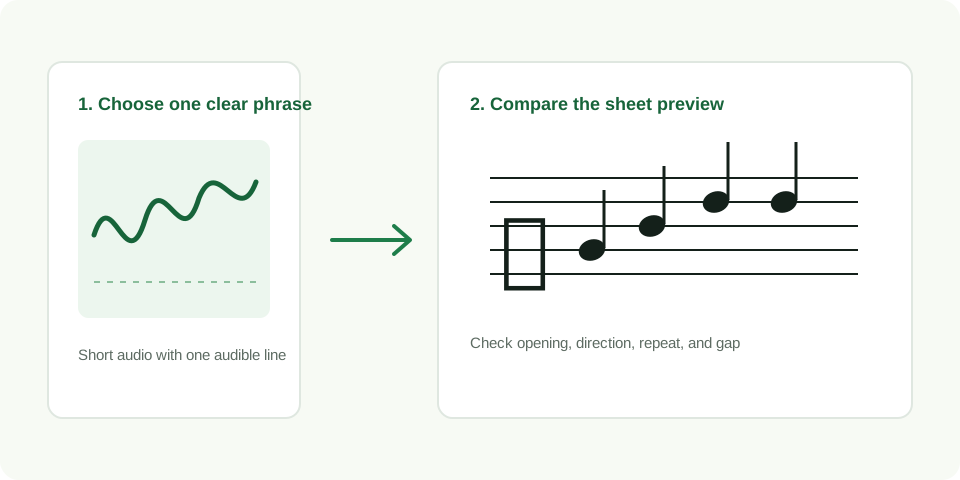
Convert audio and view the five-line preview
Prepare audio that gives the preview a fair test
Audio to sheet music is a useful handoff only when you know which melody you expect to see. Before converting, listen once without watching the waveform and name the line you want the preview to follow. If you cannot name one line because several sounds compete at once, choose another passage first.
- Make the phrase short. Five to fifteen seconds makes the opening and ending easy to compare.
- Choose a clear entrance. Leave a small amount of silence before the first intended note when possible.
- Write four reference points. Note the first pitch, one large movement, one repeat, and one deliberate pause.
- Convert the unchanged source. The browser makes a MIDI sketch and a five-line SVG preview from the same detected note sequence.
Run the four-point audio check
| Reference point | Check in the preview | Decision |
|---|---|---|
| Opening | The first visible note begins where the phrase enters | Keep going when the entrance is clear; otherwise trim extra lead-in sound |
| Direction | The notes rise or fall where the audible line moves | Use a different short phrase when another sound pulls the detected line away |
| Repeat | A repeated pitch stays at the same visual height | Replay the source to distinguish a repeat from a slide or soft re-attack |
| Gap | A deliberate pause shows as space between note events | Retry with cleaner audio when room sound fills the gap |
What the five-line preview represents
The converter detects a single dominant melody event sequence from your local audio. A note event has a pitch plus a place in time. The preview draws that same sequence on five lines, so it is a visual check of what the MIDI download contains. It is not proof that every audible sound in a recording has become notation.
This is why source selection matters more than repeatedly changing settings. A clear sung phrase, a solo instrument, or a clean bass line gives you a specific contour to compare. When the four reference points agree, the MIDI is a reasonable sketch to edit and the SVG is a useful visual reference.
Choose the right download after the check
Download .mid when you need to adjust note timing or pitch in MIDI or notation software. Download the SVG when you need a compact visual record of the detected melody. Keep the original audio with both downloads so uncertain moments can always be checked again.
The known clean fixture in the change MP3 to MIDI guide lasts 5.85 seconds and produced eight detected events in the recorded browser run. That is a reproducible check for that clean fixture, not a promise about a different audio recording.
When to retry the audio
| Preview symptom | Source-side correction |
|---|---|
| The notes trace a different melody | Find a shorter section with a more exposed line |
| One moment jumps unexpectedly | Trim the competing sound before that moment and convert again |
| No notes appear | Use a louder phrase with a clearer sustained pitch |
| Order is right but timing is loose | Keep the MIDI sketch and adjust timing only after checking the source |
Questions about audio to sheet music
Can I use an audio recording instead of a MIDI file?
Yes. Choose a supported audio file on the converter. After conversion, the result panel shows detected note events, a MIDI download, and the five-line preview.
Does the SVG replace an editable MIDI file?
No. The SVG is a visual preview. Keep the MIDI file for editable note events and the audio source for verification.
What should I do if the preview looks wrong?
Compare it to the original audio at the four reference points. If the preview follows another sound, use a shorter and clearer phrase rather than forcing a correction without evidence.