OGG to MIDI: check browser decoding before conversion
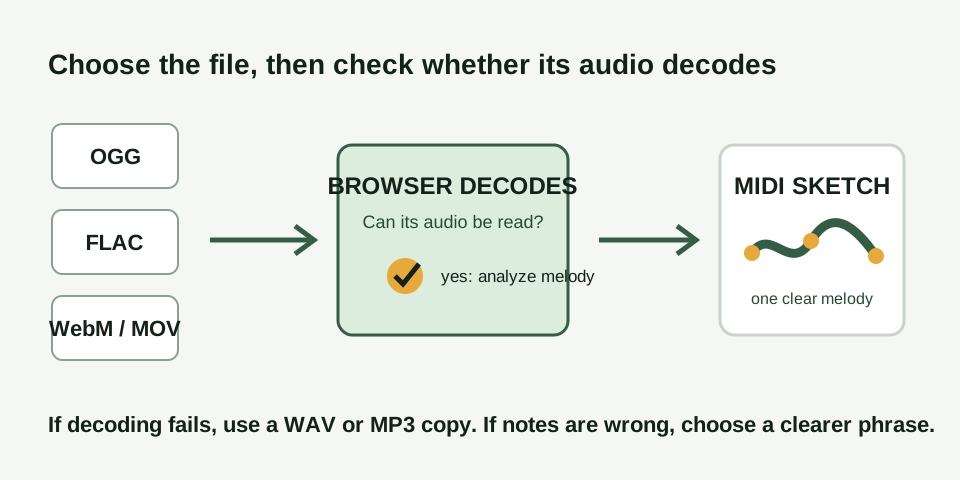
To convert OGG to MIDI, first make sure your browser can decode the file's audio. Then use a short clip with one clear melody, convert it locally, and keep the MIDI sketch only when its opening, largest movement, repeat, and pause follow the source.
Open the OGG to MIDI converter
Start with decoding, not note detection
An OGG filename does not say everything about the audio inside it. Browsers decode formats through their installed media support, and a video container can hold different audio codecs as well. When the local converter cannot decode the selected file, it has not yet analyzed pitch or written any MIDI notes.
This distinction saves time. A decoding failure calls for a playable export, such as WAV or MP3. A decoded file with an inaccurate note sketch calls for a clearer one-melody source phrase. They are separate problems with separate next steps.
One format page for related local inputs
| Input you can select | What the converter uses | First check |
|---|---|---|
| OGG | Its decodable audio | Try the local decode, then choose one clear melody |
| FLAC | Its decodable lossless audio | Keep the clip short and exposed before conversion |
| WebM | Its decodable audio track | Confirm the browser can read the codec inside the file |
| MOV | Its decodable audio track | Use a WAV or MP3 copy if decoding does not start |
These inputs use the same local conversion path. They do not need separate promises about accuracy: source clarity still matters more than the extension. A clean OGG can make a poor MIDI sketch when several parts compete; a clear WAV can still require an edit after a soft onset or pitch slide.
Use a short phrase with one intended line
- Choose five to fifteen seconds. Keep enough of the phrase to hear its start, movement, repeat, and first gap.
- Name the melody. Decide whether you are following a vocal, whistle, bass line, or solo before you load the file.
- Decode locally. Select the OGG, FLAC, WebM, or MOV file in the converter. No upload is required.
- Check the downloaded MIDI. Assign a simple instrument in a MIDI editor and compare the four landmarks with the source.
Make the right retry decision
| What happened | What it means | Next move |
|---|---|---|
| The file cannot be decoded | The browser could not read its internal audio codec | Use a WAV or MP3 copy of the same phrase |
| The file decodes but no stable notes appear | The selected phrase may not expose one pitched melody | Trim to a clearer vocal, whistle, bass, or solo moment |
| The MIDI follows another part | The dominant pitch was not your intended melody | Choose a less crowded phrase and retry |
| The MIDI mostly follows the source | You have an editable note sketch | Correct only source-confirmed timing or pitch details |
For MIDI edits after a usable conversion, follow the cleanup workflow. If you need a CSV list of the detected note events, use export MIDI notes.
Questions about OGG to MIDI
Can I convert an OGG file to MIDI without uploading it?
Yes. The converter works locally in the browser. It needs an OGG file the browser can decode and one clear dominant melody to create an editable MIDI note sketch.
Can I use FLAC, WebM, and MOV on the same page?
Yes. The same local converter accepts FLAC, WebM, and MOV. For video files, only a browser-decodable audio track is used; the file container alone cannot guarantee that its codec will decode.
What if the converted MIDI file has no sound?
MIDI stores note events, not recorded audio. Assign an instrument in a DAW or MIDI editor, then use the silent MIDI file check if playback is still missing.
Can this create drums, chords, and stems from an OGG song?
No. It is a one-dominant-melody workflow. It does not promise drum transcription, chord separation, stems, separate tracks, or a complete song arrangement.