MIDI converter: turn one clear melody into an editable sketch
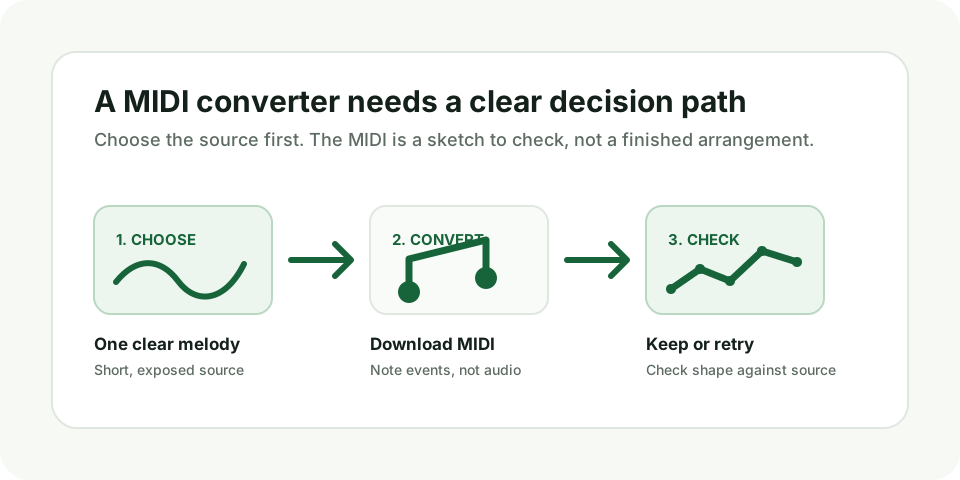
Use a MIDI converter when you can point to one melody in a short audio phrase. Convert it locally, download the note events, then keep the sketch only if its opening, largest movement, repeat, and pause still match the source. A full mix is not a shortcut to separate MIDI tracks.
Start with the decision the converter can support
The useful output is not a promise to reproduce every sound in a recording. It is a small set of editable pitch and timing events. That makes it a good starting point for a melody idea, a sung line, a simple bass phrase, or a solo instrument part. It is the wrong starting point when you need every chord voice, drum hit, stem, or part from a finished production.
Before loading a file, name the line you want to follow. If two listeners could reasonably choose different instruments at the same moment, trim to a section where the target is exposed. This one choice prevents most unhelpful piano rolls.
Use the source-to-MIDI path
- Choose a short phrase. Keep it between about five and fifteen seconds and avoid moments where chords, drums, or backing vocals begin together with the target line.
- Convert the local file. The browser creates MIDI note events from the dominant melody it detects. Keep the source file available while the result is open.
- Open the downloaded MIDI. Use a DAW or MIDI editor with a simple piano-like sound. MIDI stores notes, not the original recording's voice or instrument sound.
- Make one acceptance decision. Keep and edit a sketch that follows the intended shape. Retry with a clearer source when the main movement follows bass, accompaniment, or another melody.
Four reference points beat a vague accuracy claim
| Reference point | What to compare | What the result tells you |
|---|---|---|
| Opening | Where the intended phrase enters | A wrong start can be a local repair only when the rest of the contour agrees |
| Largest movement | The clearest rise or fall you hear | Opposite direction means the converter followed a different line |
| Repeat | One deliberate repeated pitch | Shows whether separate attacks became separate events |
| Pause | One deliberate gap in the phrase | Shows whether the event timing follows the source phrasing |
These are source-backed checks: you can replay each moment. They are more useful than treating a detailed-looking piano roll as proof. A sketch with fewer notes can be the better result when it follows the line you actually intended to edit.
Choose edit, retry, or change the job
| What you find | Decision | Next move |
|---|---|---|
| The shape agrees and one event is off | Edit | Correct the confirmed pitch or timing event, then replay that moment |
| The line is broadly right but a soft attack is missing | Edit cautiously | Use the source to justify the smallest possible change |
| The largest movement follows bass or chords | Retry | Use a shorter phrase where the intended melody is exposed |
| Several instruments are needed as separate tracks | Change the job | This single-melody workflow is not a multitrack transcription tool |
A reproducible first check
For a controlled first run, use the public eight-tone fixture in the known MP3-to-MIDI test. The downloaded source is 5.85 seconds long and contains eight designed tones. The recorded browser result contains eight detected events. Its event-count agreement is 8 detected events / 8 designed tones x 100 = 100% for that fixture only.
That formula does not predict performance on a song. It simply gives you a traceable way to verify that a clear input produced a non-empty, editable MIDI result. Apply the four reference points separately to your own recordings.
Questions about using a MIDI converter
Will the MIDI sound like my singer or instrument?
No. MIDI carries note and timing instructions. Assign an instrument in a DAW or MIDI editor for playback, then judge the note contour against the original source.
Which file types can I try?
The local converter accepts MP3, WAV, FLAC, OGG, M4A, MP4, MOV, MKV, and WebM. Audio inside a video file is used only when your browser can decode its codec.
What if the MIDI file opens silently?
The note events may be present without a playback instrument. See MIDI file has no sound? before treating silence as a conversion failure.
What should I do after I download the MIDI?
Open it in a DAW or MIDI editor, assign an instrument if it plays silently, and compare its contour with the source. Edit only confirmed local pitch or timing errors.
Can I turn the checked MIDI into audio later?
Yes. After assigning an instrument and checking the line, follow the separate MIDI to MP3 workflow to render an audio file.